Features/Planar Cut
Planar Cut
Slice clean through the model with a flat plane. This is the classic split when you need a straight, predictable seam.
When to use it
- The model is taller or wider than your printer’s build volume
- You want a simple two-piece split with a flat mating face
- You plan to add dowels or magnets across a clean plane
- You need a predictable seam for sanding and glue-up
How it works
- Load an STL or 3MF in the browser. Nothing is uploaded.
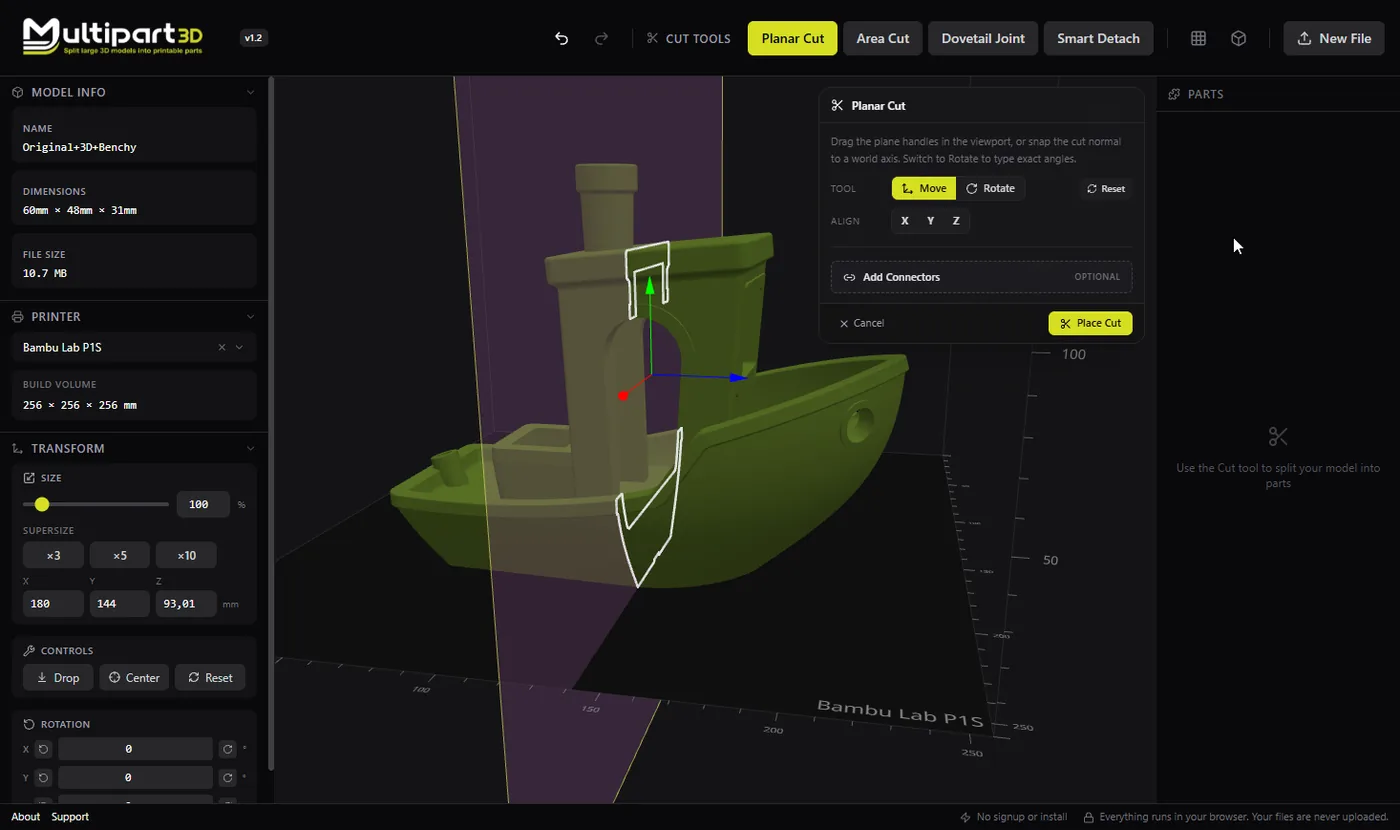
- Choose Planar Cut and position the cutting plane on the model.
- Preview both sides, then commit the cut.
- Optionally add connectors, then export the parts for your slicer.
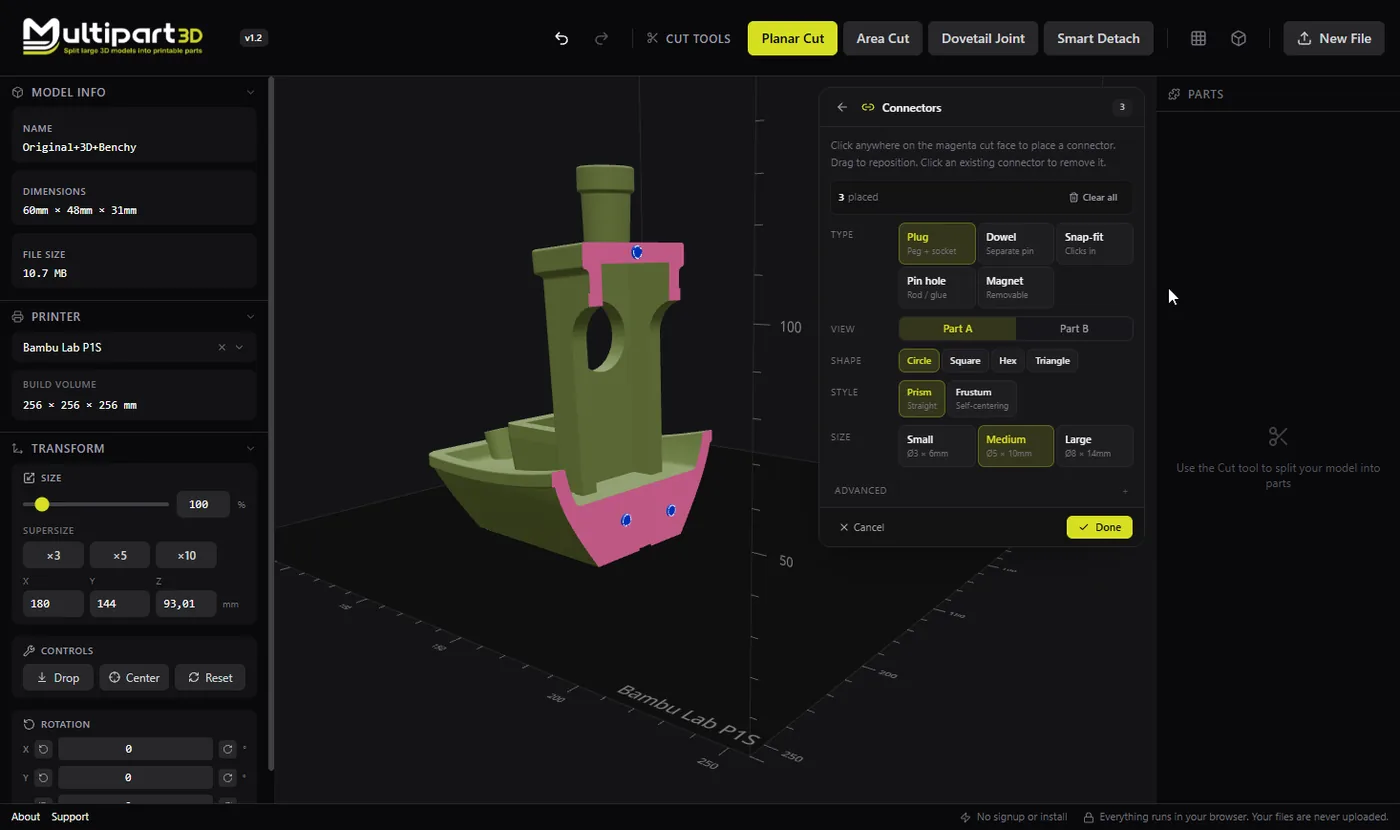
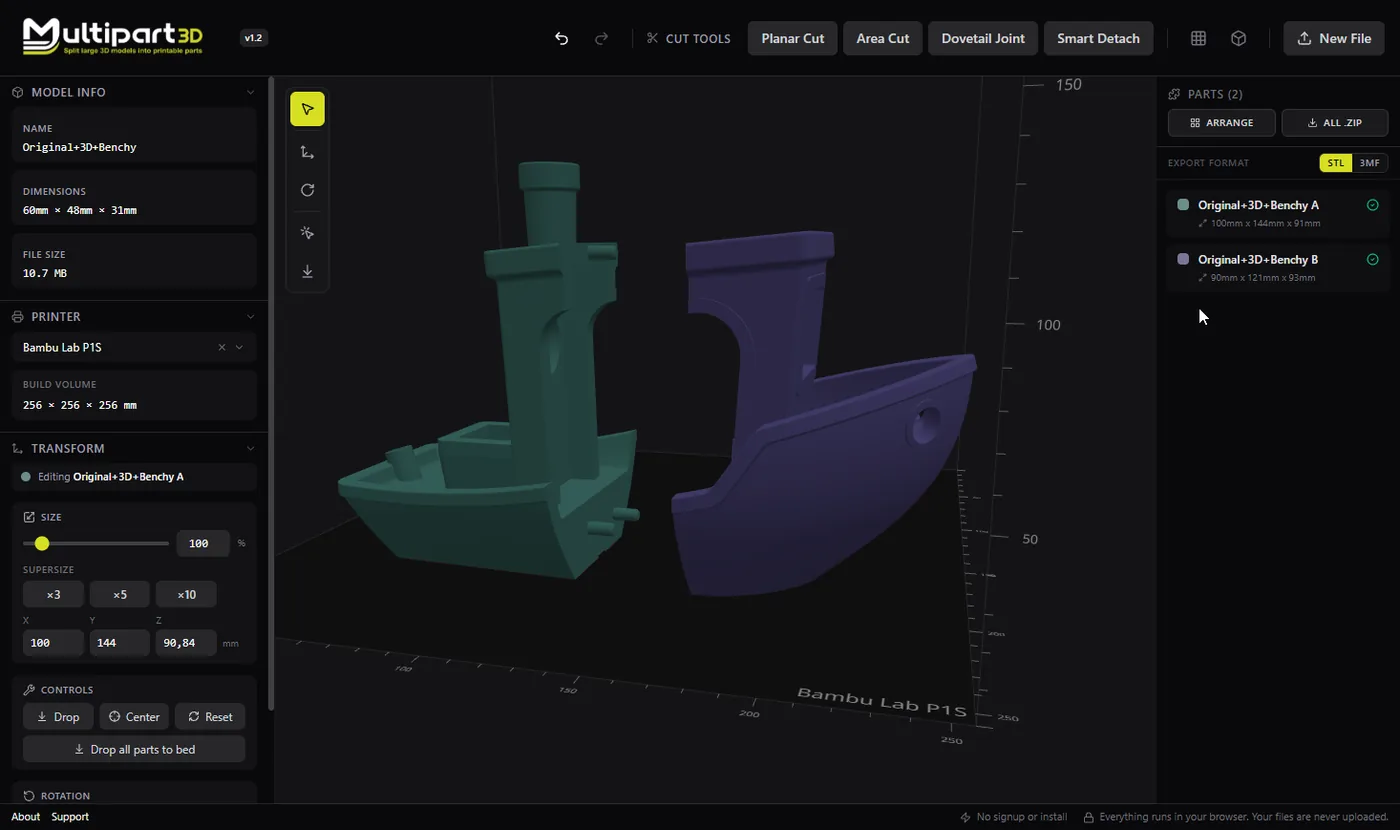
A planar cut is the foundation of multipart printing. Multipart3D runs the cut locally in your browser so you can try orientations without installing CAD software or waiting on a server.
Unlike a slicer’s “cut” which is often a one-shot plane with little control, Multipart3D keeps you in a dedicated mesh workflow: position the plane, see the result, and combine the split with connectors so the parts assemble cleanly after printing.
Use planar cuts when the seam can be flat. If you need interlocking teeth, switch to Dovetail Cut. If you only want to cut inside a window on the plane, use Area Cut.
Tips
- Place the seam where it will be least visible or easiest to sand.
- Orient the plane so each part has a good base for printing when possible.
- Pair with dowel or magnet connectors when parts must align precisely.