Features/Area Cut
Area Cut
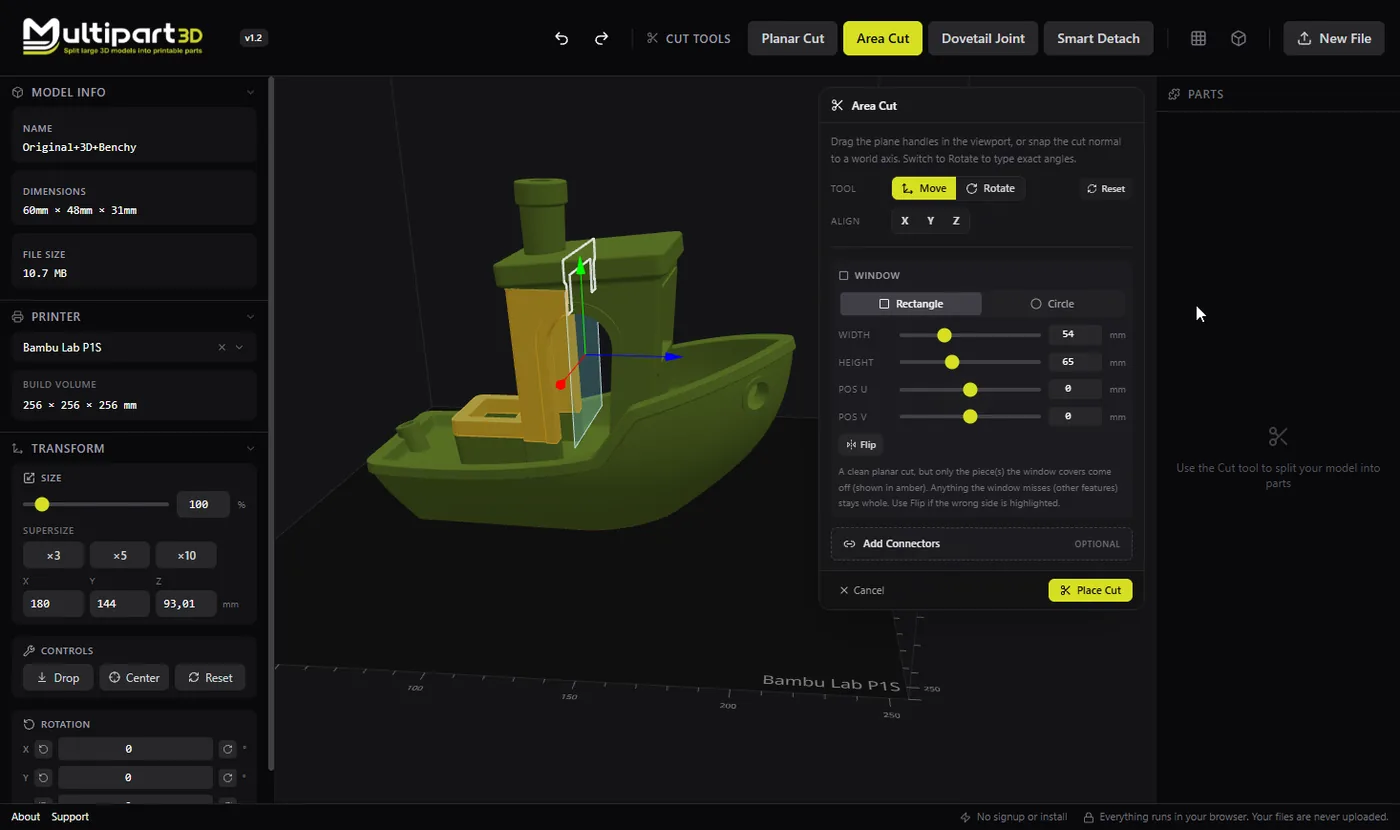
Cut only inside a rectangle or circle on the plane. Reshape a region without splitting the entire mesh.
When to use it
- You need to separate or reshape only part of a surface
- A full planar cut would break geometry you want to keep whole
- You are preparing a local insert, hatch, or removable panel
- You want a controlled window for a connector or detail
How it works
- Load your model and open Area Cut.
- Place the plane, then size the rectangle or circle to the region you care about.
- Preview the bounded cut and commit when both sides look right.
- Export or continue with other tools (connectors, further cuts).
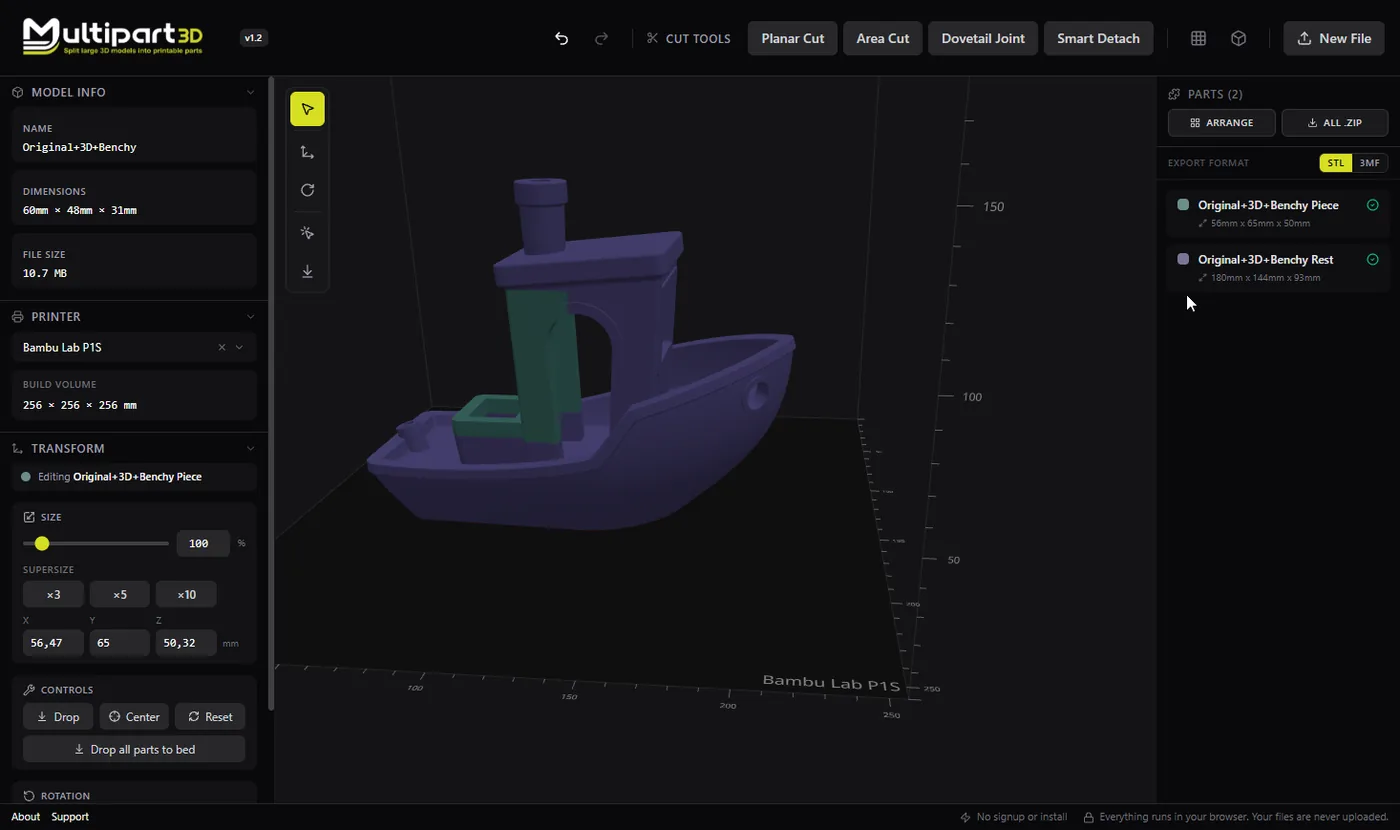
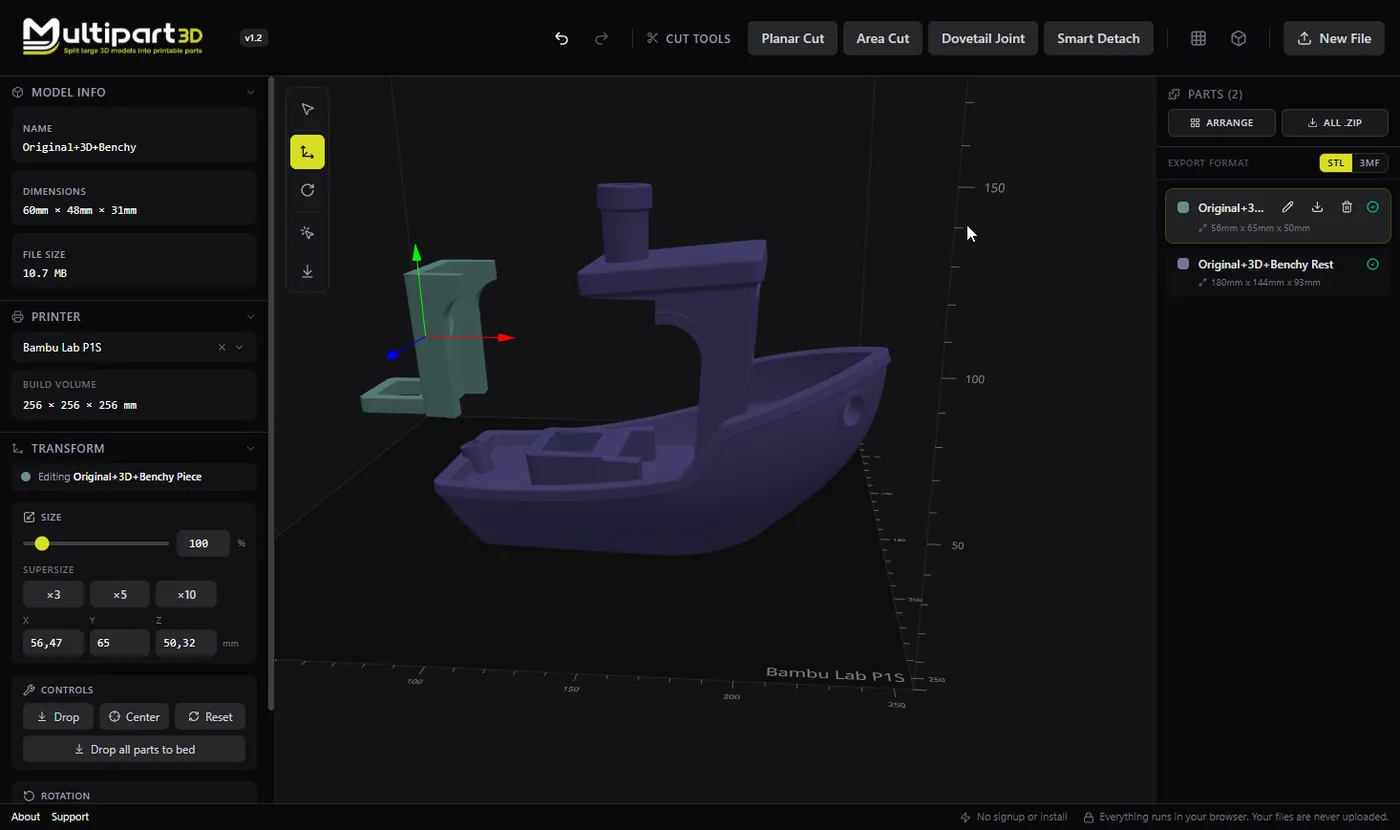
Area Cut is a planar operation with a mask. Instead of slicing the whole model, only geometry inside the chosen shape on the plane is cut. That lets you make surgical changes without a full bipartition.
That matters for props, functional parts, and painted models where a global plane would be too aggressive. Everything still runs in the browser inside Multipart3D; your files stay on your device.
Tips
- Start with a slightly larger window than you think you need, then tighten.
- Combine with Smart Detach when the region is a distinct feature you can click.
- After cutting, check that the new faces are printable or plan to sand/glue them.